


Simplifying Box to Google Drive Migration
Box and Google Drive are two well-known cloud storage platforms that provide users with a range of features and advantages. Nevertheless, when faced with the need to transfer data from Box to Google Drive, the task might appear daunting. However, there is no need to worry! This article will delve into the most effective method of accomplishing the migration from Box to Google Drive using MultCloud, a robust cloud management solution.
No matter if you’re an individual user or a business, MultCloud can streamline the migration process and guarantee a seamless transition of your files. Let’s delve into the details and explore how MultCloud can assist you in effortlessly migrating from Box to Google Drive.
The Best Way to Make Box to Google Drive Migration via MultCloud
If you opt to manually migrate your files from Box to Google Drive, the task can be both time-consuming and tedious. However, there’s good news! MultCloud provides a hassle-free solution that streamlines the entire process, since:
- Seamless Integration. MultCloud seamlessly integrates with both Box and Google Drive, offering effortless connectivity. By linking your accounts to MultCloud, you gain convenient access and efficient management of your files across multiple cloud storage platforms. This seamless integration not only simplifies the migration process but also guarantees a smooth transition of your valuable data.
- Efficient and Fast Transfer. MultCloud harnesses cutting-edge technology to optimize data transfer between Box and Google Drive. Its robust servers guarantee swift and efficient transfer speeds, enabling you to migrate large files and folders expeditiously. By leveraging MultCloud, you can save precious time and successfully complete your migration within a reasonable timeframe.
In addition to migrating between Box and Google Drive, it also allows you to transfer files from OneDrive account to another, migrate Dropbox to Google Drive, etc. Let’s discover how you can leverage this service to effortlessly migrate from Box to Google Drive and make the most out of it:
1. Sign Up for MultCloud
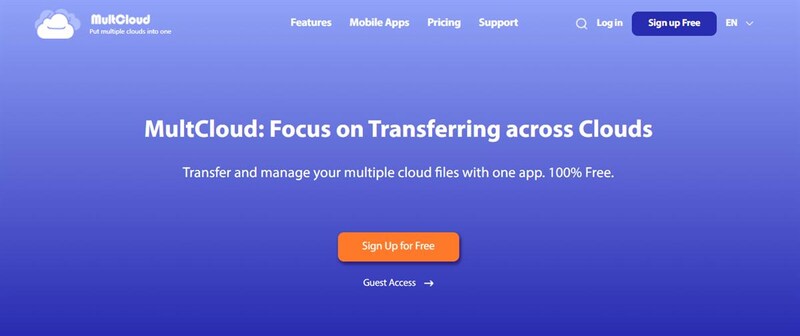
To begin, simply head over to the MultCloud website and register for an account. The platform offers a free plan that includes generous storage and data transfer limits. After successfully signing up, you can log in to your MultCloud account and commence with the migration process.
2. Connect Box and Google Drive to MultCloud
Once you have logged in, the next step is to establish the connection between your Box and Google Drive accounts within MultCloud. Just follow the on-screen instructions, which will guide you through authorizing access to both platforms. This crucial step ensures that MultCloud can securely access your files and carry out the migration process.
3. Create a Cloud Transfer Task
After successfully linking your accounts, navigate to the “Cloud Transfer” tab in MultCloud. From there, you can initiate the migration process by creating a new cloud transfer task. Choose “Box” as the source cloud and “Google Drive” as the destination cloud.
4. Customize Transfer Settings
MultCloud offers a range of customizable migration settings to suit your needs. You have the flexibility to transfer all files or selectively choose specific folders for migration. Moreover, MultCloud provides options to manage file conflicts, preserve file timestamps, and more. Feel free to adjust these settings according to your preferences.
5. Begin the Migration Process
Once you have personalized the migration settings, simply click on the “Transfer Now” button to commence the migration process. MultCloud will initiate the transfer of your files from Box to Google Drive in the background. You can conveniently monitor the progress and track the transferred files within the MultCloud interface.
6. Sit Back and Relax
Once the migration process is initiated, you can simply unwind and let MultCloud handle the rest. Thanks to its robust servers, data transfer between Box and Google Drive is fast and efficient. You can continue with your other tasks or even log out of MultCloud, knowing that the migration will seamlessly proceed in the background.
Conclusion: Seamlessly Migrate from Box to Google Drive with MultCloud
Migrating your files from Box to Google Drive may initially seem overwhelming, but MultCloud is here to simplify the process and guarantee a seamless transition. On top of transferring, it is also a cloud sync service that helps you sync data between cloud drives directly and seamlessly.
MultCloud’s intuitive interface, extensive customization options, and dependable data transfer make it the ideal choice for your migration requirements. Don’t let the fear of migrating hinder your progress—embrace the capabilities of MultCloud and unlock the full potential of Google Drive for your files!
Read Also: Importance of File Sharing
